Open a Phone Party TV game in a browser on the TV, or on a laptop plugged into it. A QR code and a 4-letter room code appear. Each player scans the code with their phone camera, types a nickname and joins. The phone then becomes a private controller. Players don't need an app or an account.
In testingThe games aren't online yet. These steps show how joining works in our test builds.
Join in three steps
Put the game on the TVUse a smart TV browser, or plug a laptop into the TV.
Scan the QR codePoint your phone camera at the TV, or type the room code.
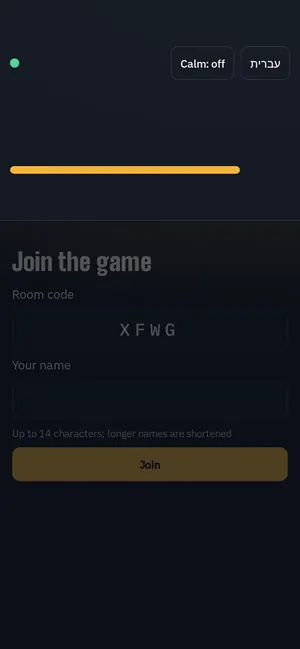
Type a nicknamePick a made-up name and tap Join. Your phone is now your controller.
TV lobby with QR code: screenshot coming. Our test lobby shows local network addresses, so we don't show it yet.
The join screen on a phone. Local test build.
Your game
Coming from a game page? It's highlighted below. Each game joins the same way.
You picked this game.
Friday Bourse
In testing
Players: Up to 4 free, up to 8 with Host Pass (planned). Languages: English.